
Your phone holds more of your life than your laptop does — banking, photos, two-factor codes, work email — and it ships in a state tuned for convenience, not safety. The good news: the settings that matter take about fifteen minutes to change, and you only do it once. This guide walks through twelve settings in the order that actually reduces risk, with where to find each one on both iPhone and Android.
Start with the lock screen
Everything else depends on the device being locked properly. A 4-digit PIN is guessable in a shoulder-surfing scenario and weak against a stolen-phone attack. Use a six-digit PIN or a longer alphanumeric passcode, and enable biometrics as convenience on top, not instead.
- iPhone: Settings → Face ID & Passcode → Change Passcode → Passcode Options → 6-digit or Custom Alphanumeric.
- Android: Settings → Security → Screen lock → PIN → choose 6+ digits, or Password.
Also check what’s visible on the lock screen: message previews and notification details reveal one-time codes to anyone holding the phone. Turn previews off for messaging apps in notification settings.
The twelve settings that matter
| # | Setting | Where | Why it matters |
|---|---|---|---|
| 1 | Strong passcode | Settings → Security/Passcode | Physical theft is the top phone risk |
| 2 | Auto-lock in 30s | Display → Auto-Lock | Reduces unattended access |
| 3 | Find My / Find My Device | Account → Find My | Locate, lock and wipe remotely |
| 4 | Auto OS updates | Software update settings | Patches are the main fix for known exploits |
| 5 | App auto-update | App store settings | Old apps carry known bugs |
| 6 | App permission audit | Privacy → Permissions | Location/mic/camera access by strangers |
| 7 | Location: only while using | Per-app location settings | Background tracking is rarely needed |
| 8 | 2FA on your accounts | Per-account security | Stolen password alone stops working |
| 9 | Backups on and tested | Cloud backup settings | Loss/ransomware recovery |
| 10 | USB/accessory restriction | Security → USB accessories | Blocks physical data-extraction tools |
| 11 | Lockdown/Emergency mode when travelling | Security settings | Extra hardening for border/risk travel |
| 12 | Remove old apps and accounts | Your own list | Every dead account is a future breach |
The permissions audit (the one people skip)
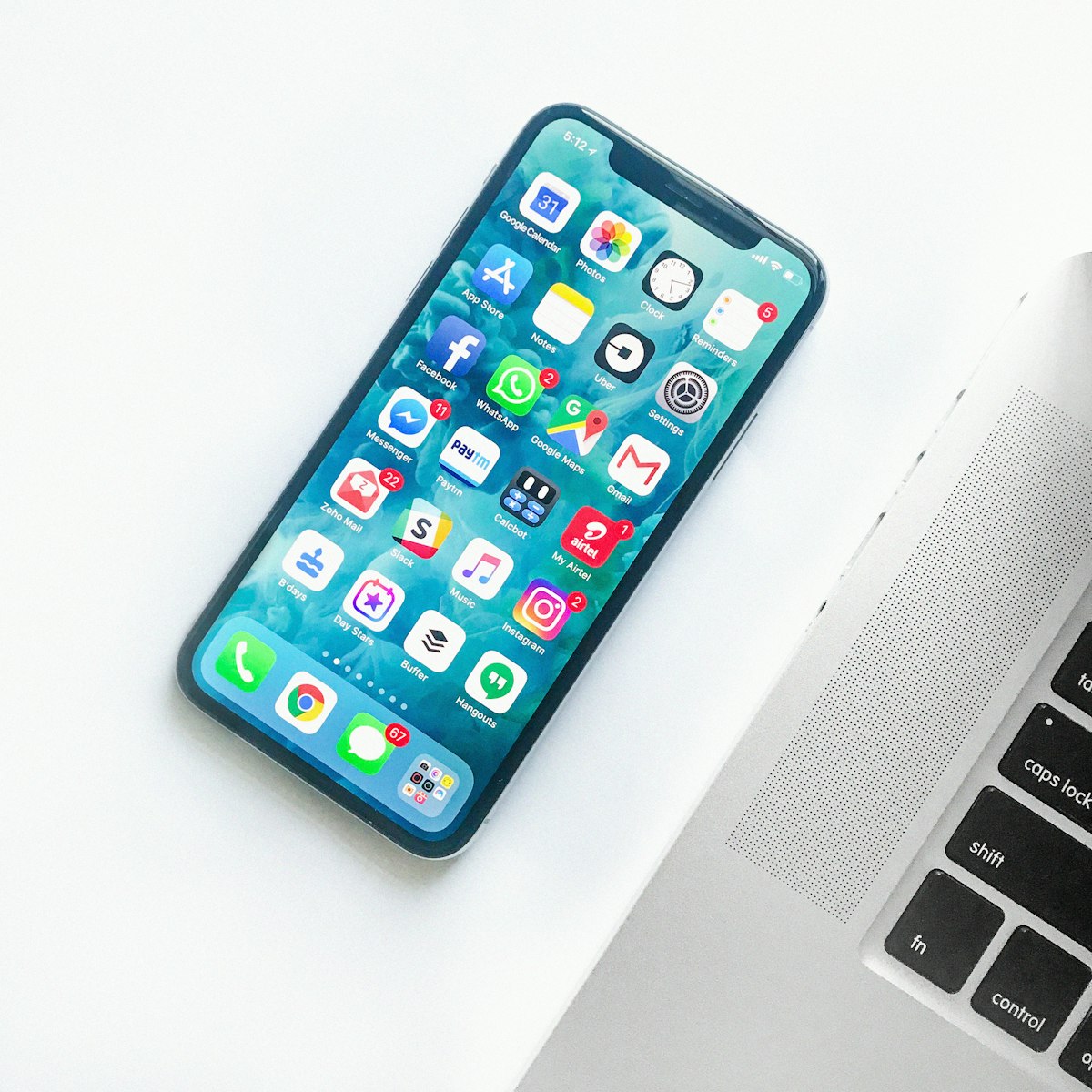
Open your permission list and read it like a stranger’s shopping list. A torch app asking for contacts is a red flag. A photo editor wanting your microphone is a red flag. A game tracking your location in the background is usually just ad-tech, but if a weather app asks for contacts, delete the app. The rule: grant the permission only when the app is used, and only if the feature genuinely needs it.
- iPhone: Settings → Privacy & Security → review Location, Microphone, Camera, Contacts.
- Android: Settings → Privacy → Permission manager → review each category and remove anything unexplained.
- Set location to “While Using” for everything except maps and ride-hailing.
Two things to do today, not later
Turn on 2FA for your email — it is the account that resets all the others. Our 2FA vs MFA guide shows which factor to pick and why SMS is the weakest option. Then verify a backup restores — a backup you have never restored is a hope, not a plan, as we explain in the phone backup guide.
Where phones actually get compromised
Not in the way people imagine. The real vectors in 2026 are: scam texts with links (smishing), sideloaded apps from outside official stores, fake “update” pop-ups in browsers, and public Wi-Fi portal traps — covered properly in our public Wi-Fi safety guide. Once those four are handled, the “phone got hacked” anxiety drops enormously.
For the wider picture — routers, home network and the rest of your devices — the free Security Hub collects every guide in one place, including the 24-step home check.
Frequently Asked Questions
Is a 4-digit PIN enough on a phone?
It’s better than nothing but weak: it’s easy to observe and quick to brute-force on a stolen device. A 6-digit PIN or an alphanumeric passcode is a meaningful upgrade, and biometrics work well as an addition — not a replacement — for the times you need speed.
Do I need antivirus on a phone?
For most people, no. The built-in protections (app scanning, sandboxing, verified stores) handle the common threats. The exceptions: if you sideload apps regularly, or use the phone for business data in a risky environment, a reputable mobile security suite adds value. The bigger wins are always the settings above.
How often should I check my phone’s privacy settings?
Two times a year, or whenever you install a batch of new apps. Permission lists drift as apps update and request more. The audit takes five minutes and routinely catches permissions people never intended to grant.