

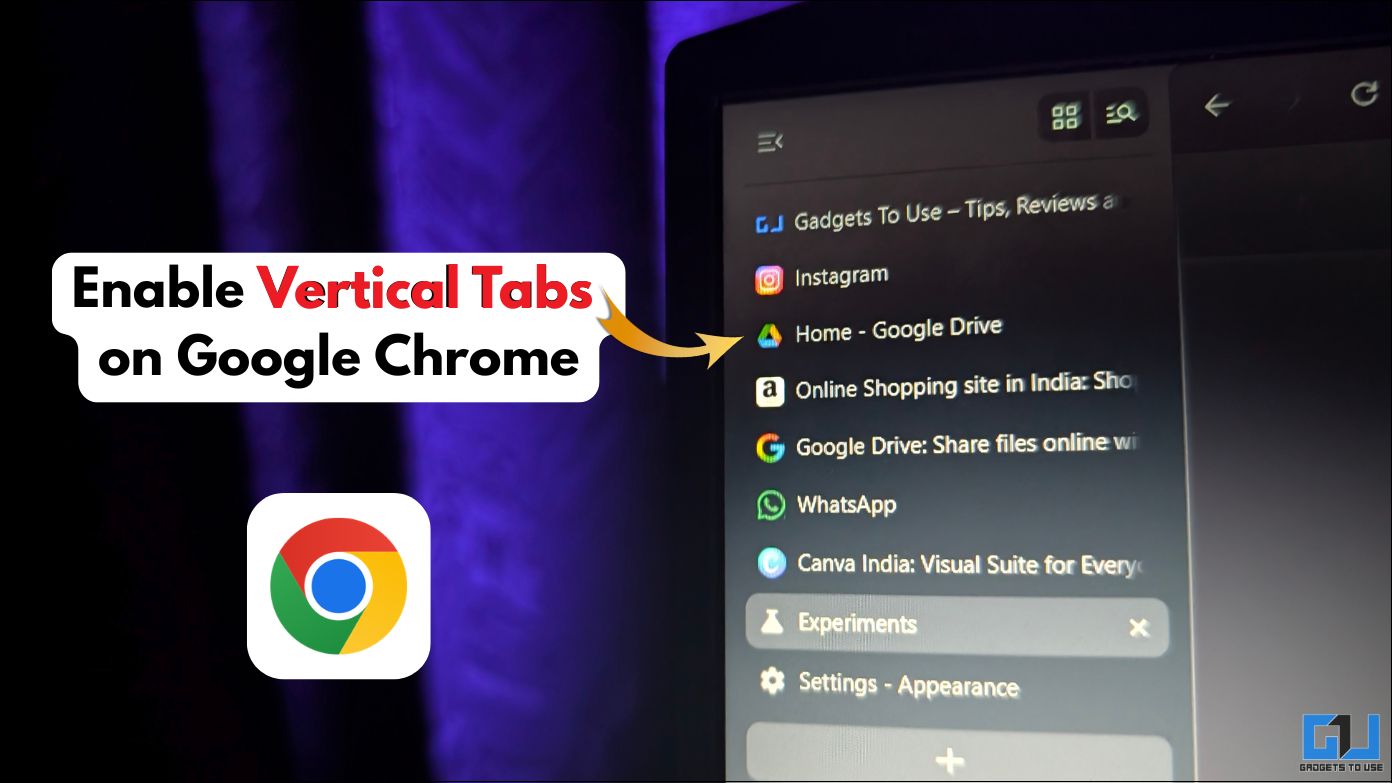
- Chrome Flags is a set of test features that you can use to customize your Google Chrome experience.
- Yes, you can set the Tab strip back to ‘Top’ or disable the feature entirely in chrome.
- Vertical Tabs make your Google Chrome experience better especially if you are someone who has multiple tabs open at once.
Managing multiple tabs in Google Chrome can be a problem. Especially if there are so many tabs open that you can barely see the icons of the websites. The default horizontal layout of tabs is perfect for casual browsing. But it can feel cramped, especially when you have to switch tabs back and forth. You can manage your tabs better by using a vertical tab layout.
Chrome Flags: Hidden Features in Google Chrome
Chrome Flags is a set of test features that you can use to customize your Google Chrome experience. They are not available by default in the stable version of Google Chrome. These are features that you can test before they are officially introduced in the stable version. One of these features is the Direct Tabs feature, which can give you the ability to manage your tabs better.
Enables Direct Tabs in Google Chrome Using Chrome Flags
1. Open a new tab in the Chrome browser. Copy “chrome://flags” and paste it into the search bar. Click Enter.
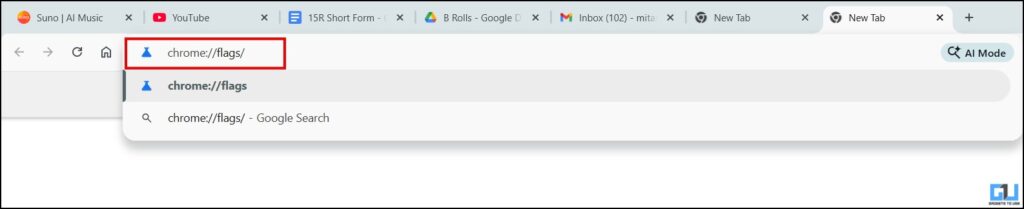
2. Here, you will find tons of features to explore in Chrome. In the search bar, search for ‘vertical tabs’.

3. Once you find it, click on the drop down menu. Here, select ‘Enabled’.
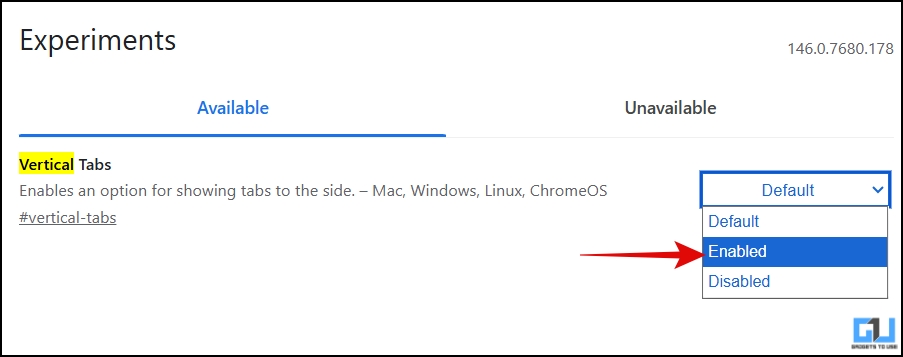
4. Now, you will be prompted to restart the browser as the changes take effect the next time you open the browser. Click on ‘Restart’.

5. After launching the browser, go to browser settings or simply copy and paste “chrome://settings” in the search bar.

6. Click on the ‘Appearance’ tab.
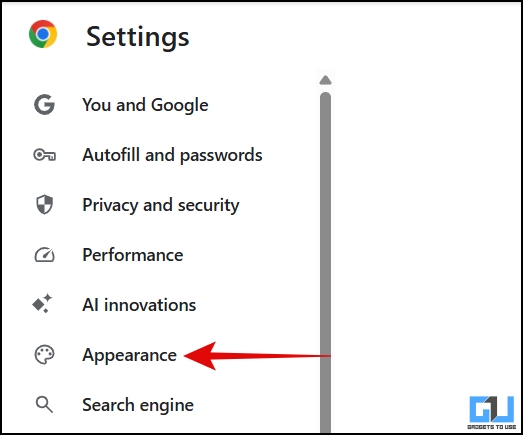
7. From the ‘Tab row position’ drop-down menu, select ‘Side’.
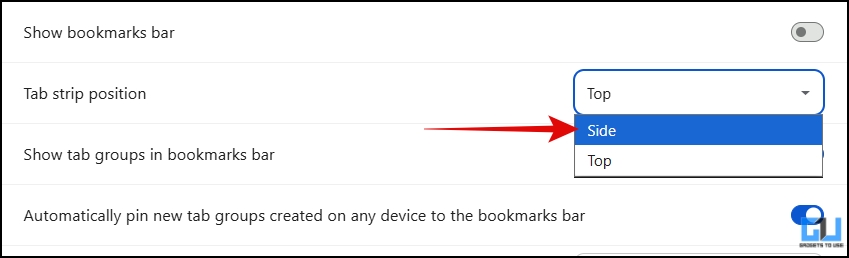
All tabs will be moved to the left side, stacked on top of each other.
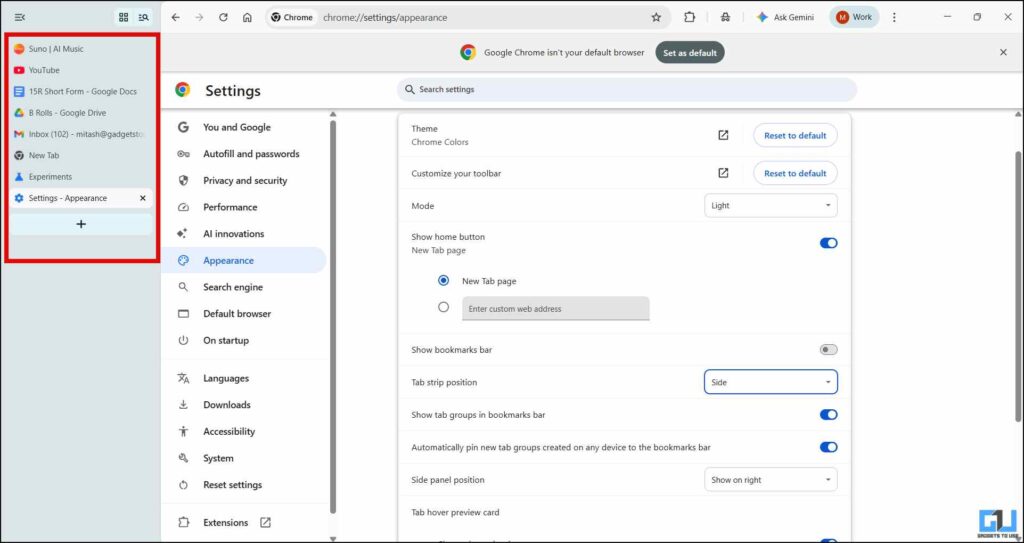
You can switch back to horizontal tabs by changing the Tab strip position to ‘Top’. Also note that this will work in any Chromium-based browser, such as Brave and Microsoft Edge.
Frequently Asked Questions
Q. Is it safe to use Chrome Flags?
Yes, they are safe to use, but as features are being tested, they may become unstable or be removed without notice.
Q. Can I disable Direct Tabs if I don’t need them?
Yes, you can switch the Tab strip back to ‘Top’ or turn the feature off completely chrome://flags. Select ‘Default’ in Direct Tabs and restart the browser.
Wrapping up
Vertical Tabs make your Google Chrome experience better especially if you are someone who has multiple tabs open at once. Since they are stacked on top of each other, you can easily read the title of the tabs. In the meantime, you can also check other test features in Chrome Flags. However, keep in mind that these features are in beta stage and may not be stable.
You may also like to read:
Have questions related to our how-to guides, or anything in the tech world? Check out our new GadgetsUsing an AI Chatbot free, powered by ChatGPT.
You can also follow us for the latest tech news at Google News or for tips and tricks, smartphone and gadget updates, join GadgetsToUse Telegraph Groupor subscribe to GadgetsUsing a YouTube Channel for the latest updated videos.
⬇️ Site Search Gadget ⬇️
You can find anything on our website, including tech how-to, solution or review using the google site search box below.
Was this article helpful?
YesNo