Comparison of the Best Free to Use Document Scanners on Android and iPhone

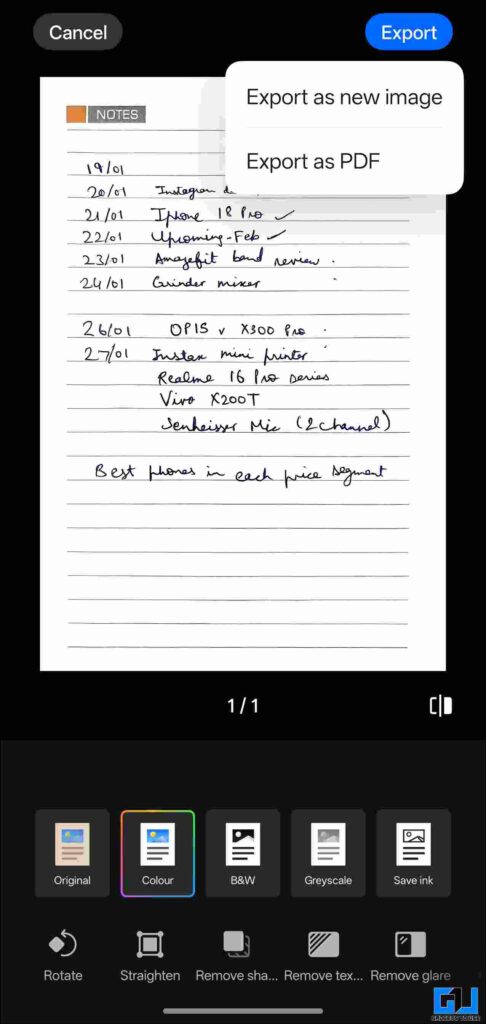
- When you’re done editing, just tap on the top left corner to send the document as an image or PDF.
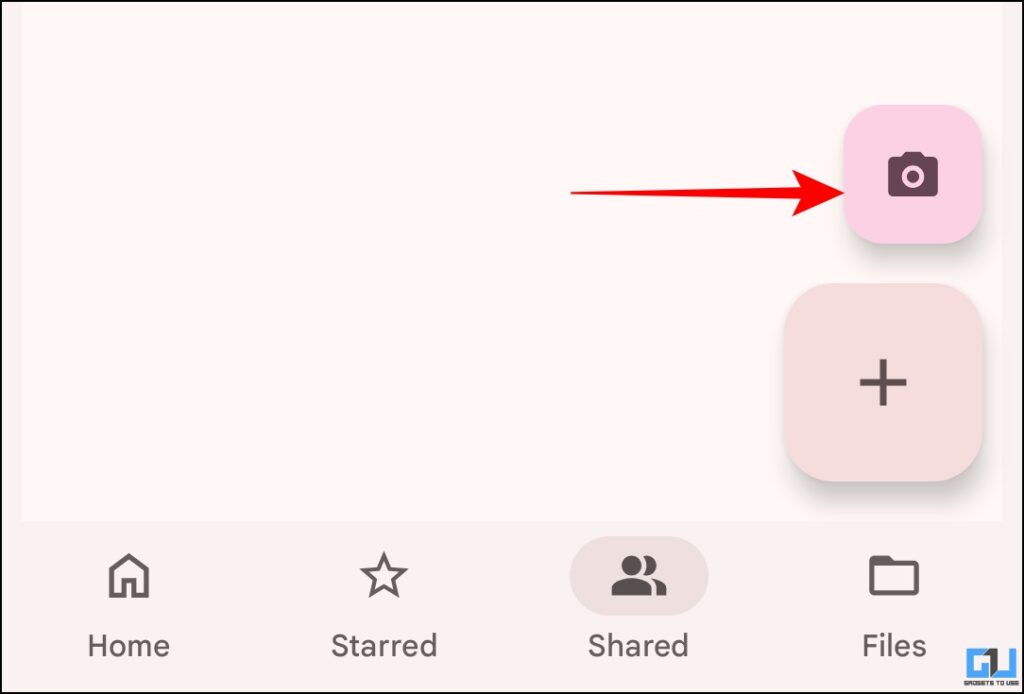
- To access it, simply open the Google Drive app and click the camera icon above the integration icon in the lower right corner.
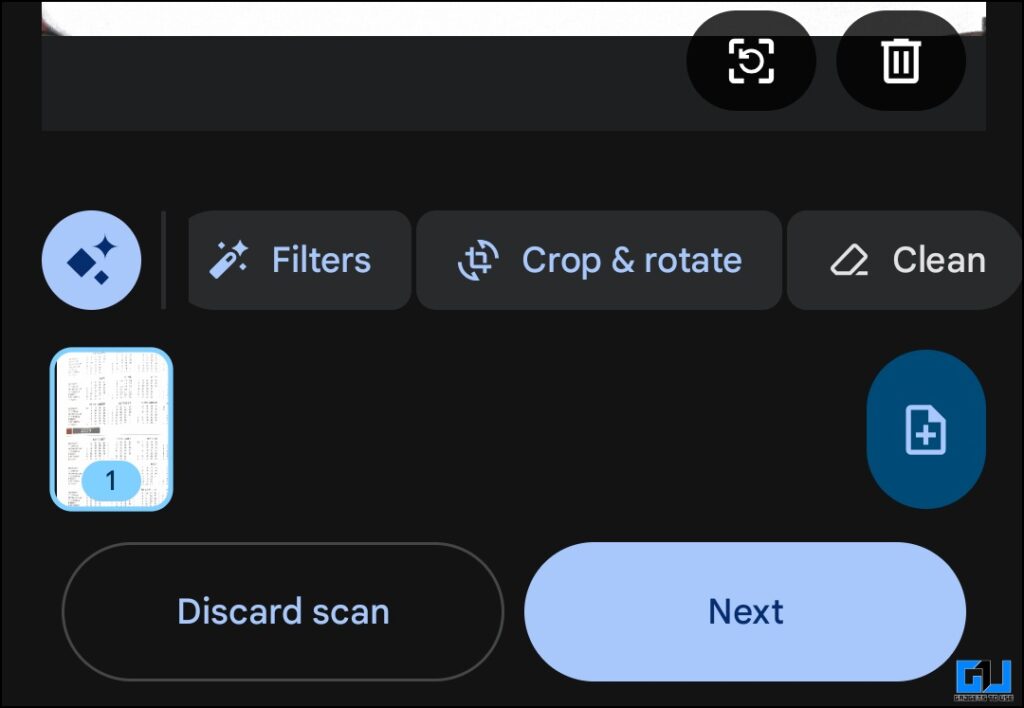
- After editing, you can name it, save it as a PDF or JPEG, and upload it to your drive.
You must have come across a situation where you needed to scan a document. Although there are many apps to do that, they may not be the best option for you. This is because most of them are full of ads at every step or the downloadable document is hidden behind a paywall. And these things can be frustrating, especially if you need to scan a document quickly. So, we’ve checked out the best free document scanners for both Android and iOS.
Comparing the Best Document Scanners
The best part about these scanners is that they are built in. That’s why you won’t need to download any additional app on your device. Let’s compare them below.
Google Drive
Every Android smartphone comes with Google apps pre-installed, and Google Drive is one of them. Among the many features it offers, the built-in document scanner is limited. To access it, simply open the Google Drive app and click the camera icon above the integration icon in the lower right corner.
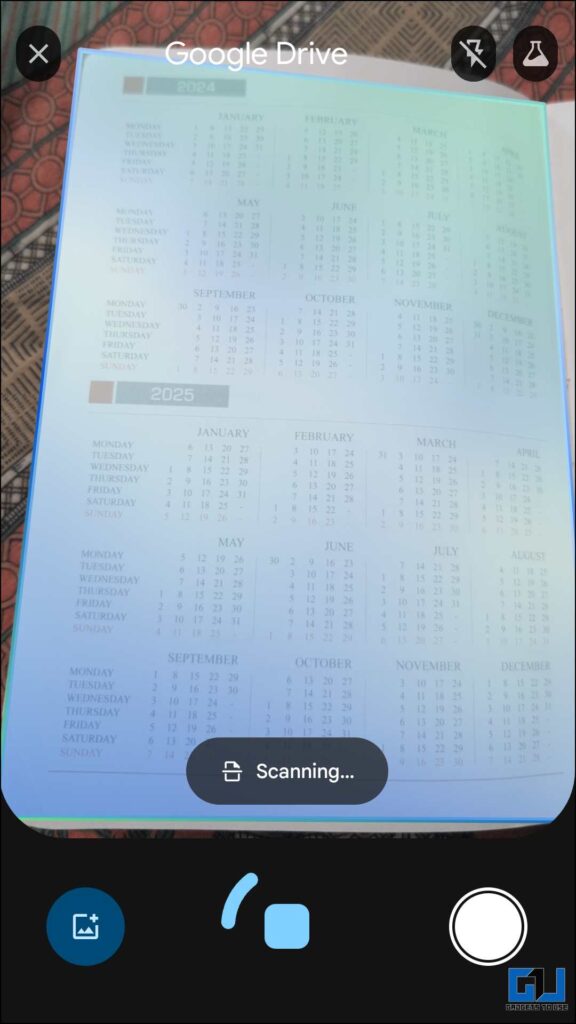
Here, you can upload photos from your device or capture them instantly. For shooting, you get both automatic and manual shooting modes. Often, when you try to align the document to be scanned, it may not move properly when you tap the close button. So, in such cases, the automatic capture mode is ideal. Since it captures a photo of the document as it coincides, you don’t have to press the shutter button.
Once the document is scanned, you get options to edit it. You can apply filters, crop or flip the page, and clean, too. You can also add additional pages to the same document or rearrange the scanned pages. After editing, you can name it, save it as a PDF or JPEG, and upload it to your drive. To share it, you can download it or simply share the drive link.
Good:
- Easy access to documents as they are saved on your drive. Therefore, you can access them on all devices.
- Although OCR has limitations, it is still useful. You can search any scanned document, even if you don’t remember the file name, by simply searching for any word in the document’s content.
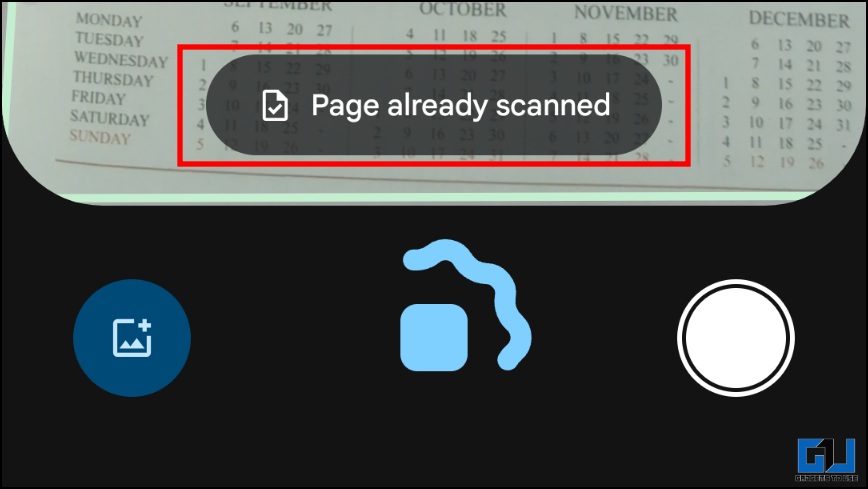
- When you scan documents in Auto Scan and you keep the camera on an already scanned page, it tells you ‘Already scanned page’. This is great as it prevents you from accidentally scanning the same page more than once, especially if you’re scanning a multi-page document.
Disadvantages:
- Limited editing options.
- No export formats have been developed
OxygenOS Text Scanner
OnePlus devices running on OxygenOS have a built-in document scanner. This is integrated into the camera app. To access it, simply open the camera app and swipe left until you get to ‘Text Scanner’ mode. Additionally, you will find this on Oppo devices, as ColorOS is very similar to OxygenOS.
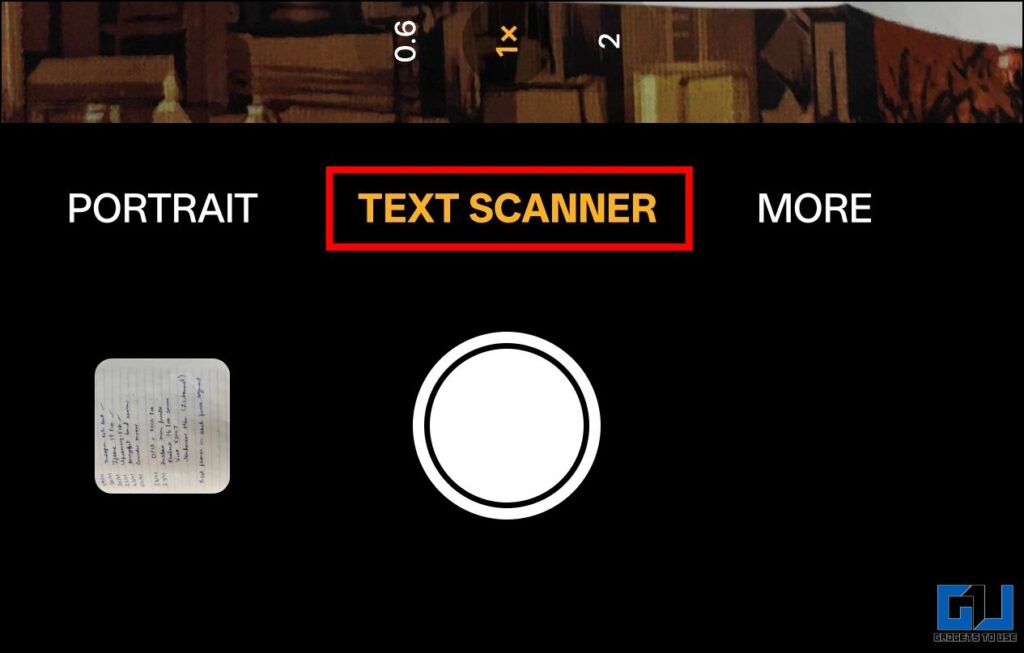
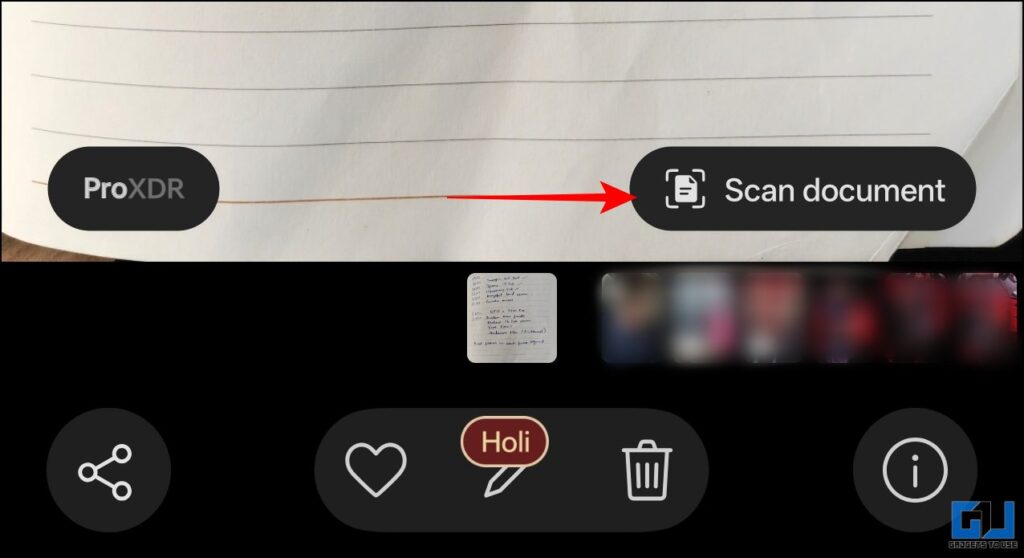
Here, you can scan the pages of a document, and it will align them to the correct orientation and crop them accordingly. Once you’ve captured a photo, open it in the gallery and press ‘Scan document’ in the lower right corner.
You can use various filters on this page. Additionally, you can rotate or orient your page as you like. You’ll also find cleaning options such as removing shadows, text, or glare. When you’re done editing, just tap on the top left corner to send the document as an image or PDF.
Good:
- It uses AI to improve page quality.
- As expected from OxygenOS, the UI feels minimal and easy to use.
Disadvantages:
- There is no automatic capture feature
- Lack of editing options and features, such as page reordering.
iPhone Notes
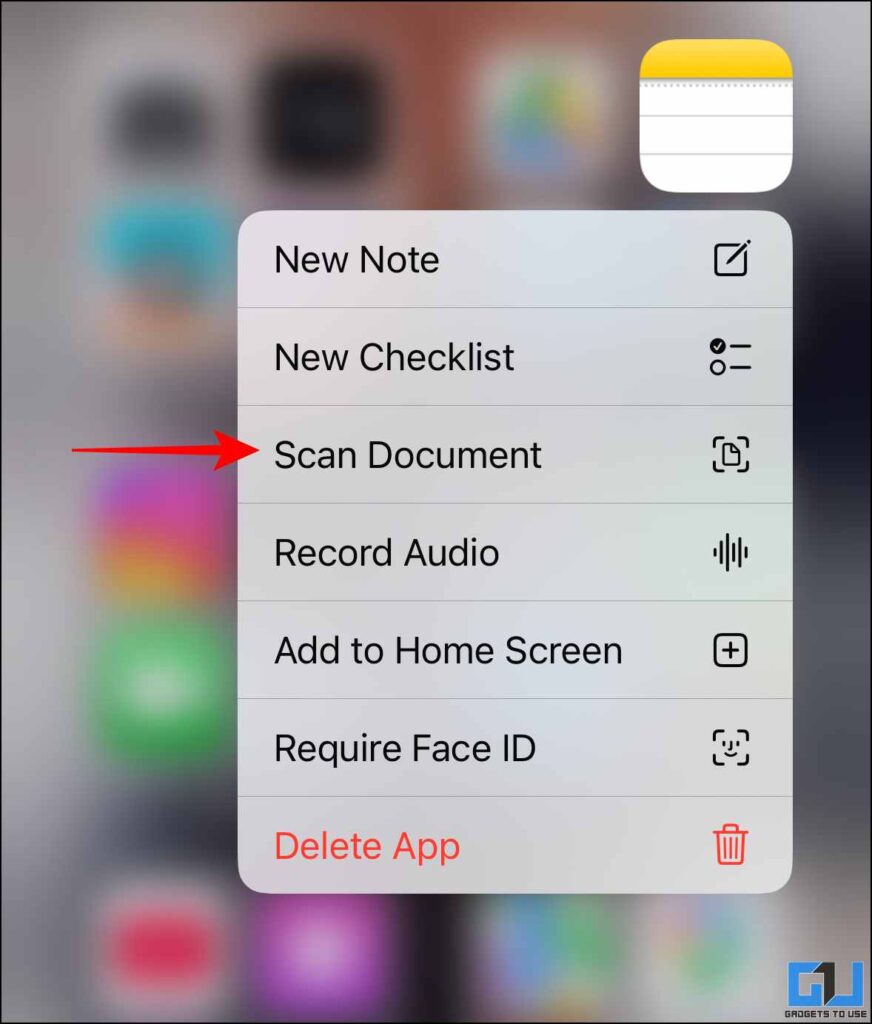
iPhone users can use the Notes app, which has a built-in document scanning feature. To access it, long-press the Notes app icon on the home screen and tap ‘Scan documents’. Or you can open the Notes app and find the tool when you open a new Note.
Similar to Google Drive, you’ll find an automatic capture feature here, which you can manually switch to if you need to. Unlike other options, this one allows you to apply filters while taking a photo of the document.
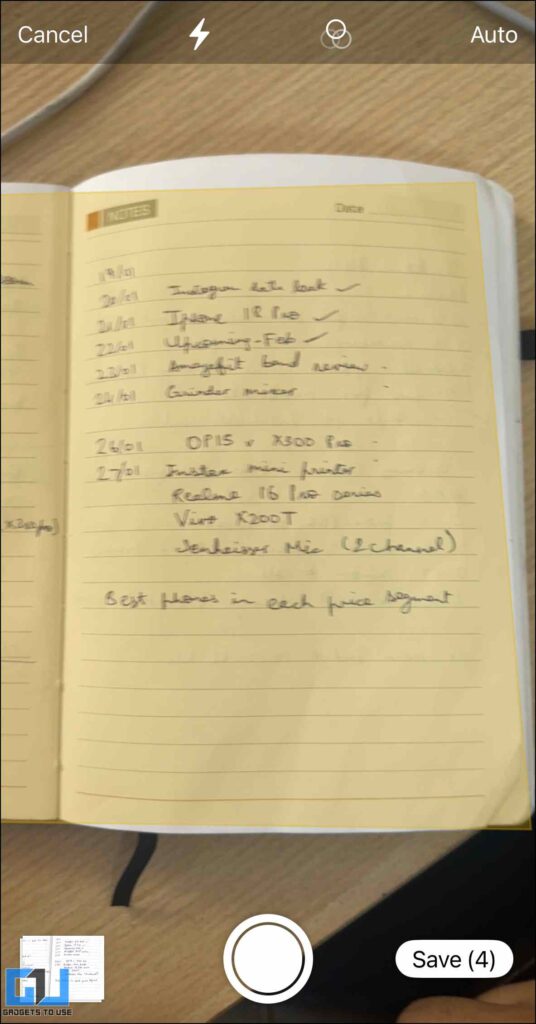
After scanning, you can align or crop it, then tap ‘save scan’. It will be saved as a new note. In addition, you can save this to files and share it as a PDF or doc file.
Good:
- Well integrated into iOS
- Edit options like adding text and annotations.
Disadvantages:
- Export options are limited and do not extend to all devices outside the Apple ecosystem.
- Lack of OCR features
The best Document Scanner app
| Additional tools like adding text and annotations, give it an edge | Google Drive | OxygenOS Text Scanner | iPhone Notes app |
| OCR | Basic text is supported | It is limited and not specific | It does not have OCR |
| Digital Scanner Quality | Good | Best (using AI to improve) | Medium clarity |
| Reorder Pages | Yes | No | Yes |
| Export flow and options | Scroll through basic options like PDF and JPG | Saves to device storage in PDF or image format | The export process can feel long, especially when saving in the desired format. |
| Planning Tools | Basic programming tools | The export process can feel long to save in the desired format. | AI cleaning tools to improve text quality |
Each tool has something that gives it an edge over the others.
- For example, the AI features in the OxygenOS document scanner are useful if you have to capture document images in complex lighting conditions.
- Similarly, the ‘Scan a document’ tool in the iPhone Notes app will be handy for someone working within the Apple ecosystem. Also, as mentioned above, the feature to add text and annotations can be really useful.
- But if I had to choose one, I think I’d go with the document scanning tool in Google Drive. Simply because of the ease of exporting and sharing documents thanks to the strong cloud storage integration. Also, some options are limited to certain devices, but this can work for almost all document scanning needs.
Frequently Asked Questions
Q. How do I scan documents without installing applications?
You can simply scan documents without installing any app using Google Drive’s ‘Scan’ tool, which comes pre-installed on almost all devices. You can use the text scanner integrated with the camera app on OnePlus or Oppo devices.
Q. How to scan documents on iPhone for free?
You can scan documents on iPhone for free using the Notes app. In addition, you can also define documents.
Wrapping up
These days, everyone has felt the need for Document scanners as most of the requests and bookings are done online. Since third-party apps can be difficult to use, built-in smartphone tools are convenient for users. We have compared 3 such options for all operating systems. Although OxygenOS and iOS offer interesting features in their document scanners, the scanning tool in Google Drive seems to be suitable for almost everyone.
Read more:
Have questions related to our how-to guides, or anything in the tech world? Check out our new GadgetsUsing an AI Chatbot free, powered by ChatGPT.
You can also follow us for the latest tech news at Google News or for tips and tricks, smartphone and gadget updates, join GadgetsToUse Telegraph Groupor subscribe to GadgetsUsing the YouTube Channel for the latest updated videos.
⬇️ Site Search Gadget ⬇️
You can find anything on our website, including tech how-to, solution or review using the google site search box below.
Was this article helpful?
YesNo