

- Using incognito mode may not be possible, as you may need to log in every time you visit the website where you have a profile.
- In Mozilla Firefox, in the history settings, you can search for a specific website and delete all data for that site, including history, cookies, and cache.
- Once this extension is activated, you will be able to access the settings whenever you open the history in your browser.
It is a basic function of web browsers to record and store your browsing data. This includes a history of all the websites and domains you have visited. However, there must be times when you would feel that if there is any way a particular website is not saving your browsing history. Maybe you don’t want a website record in history, but you visit it often. Or maybe you don’t want clutter in your search suggestions based on history from websites you open repeatedly. Although there is no definitive way to block websites in the browser, there are still workarounds.
Stop Website Saving in Browsing History
This is a universal problem since most popular browsers are based on Chromium. However, there are also non-Chromium browsers such as Mozilla Firefox that sometimes experience the same problem. We will explore ways to fix this in both Chromium and non-Chromium browsers.
For Chromium Based Browsers
In chromium-based browsers like Google Chrome, Brave, Microsoft Edge, and others, you can easily use a web extension called Better History available in the Chrome Web Store.
1. Click the blue button to the right of “Add to Chrome,” which may differ depending on the browser you use. You may get a pop-up asking for confirmation. Click “Add Extension”.

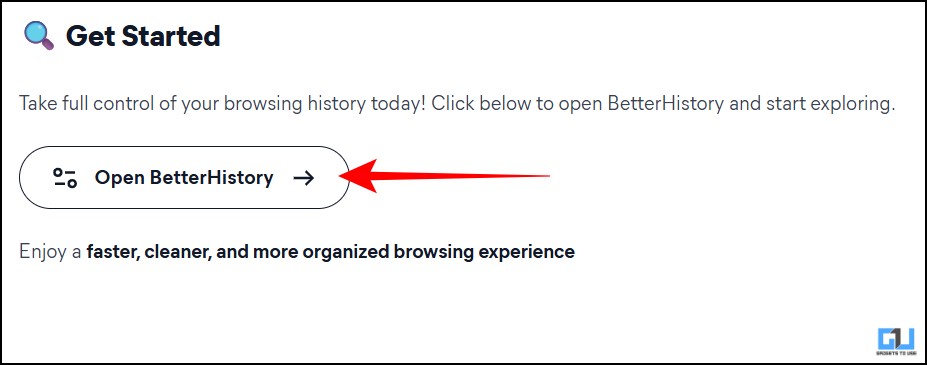
2. You will be redirected to the web page. Click on “Open BetterHistory” there to open the history settings. Once this extension is activated, you will be able to access the settings whenever you open the history in your browser.
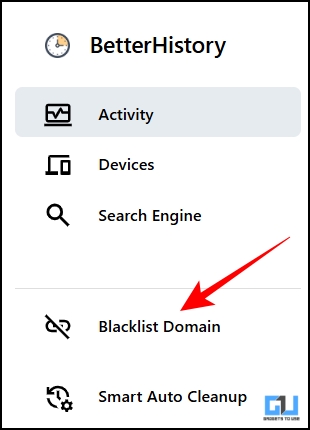
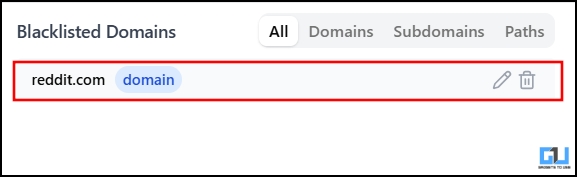
3. In the sidebar, you will find the ‘Blacklist Domain’ tab. Click that.
4. Here, enter the domain you want to block, and click ‘Add’.
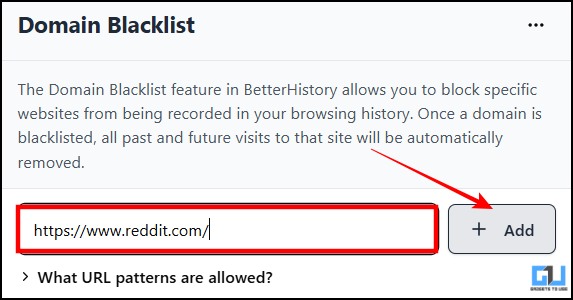
5. Under the same tab, you will be able to see all the blocked domains, and you can delete or edit them.
For non-Chromium browsers
For non-Chromium browsers, there is currently no such extension that can directly prevent a website from being saved in history. But don’t worry as you can take simple steps like to delete the history of a particular website. In Mozilla Firefox, in the history settings, you can search for a specific website and delete all data for that site, including history, cookies, and cache.
1. Open the history settings using the shortcut, “Ctrl + Shift + H”, and search for a specific website if you cannot see it in the recent history.
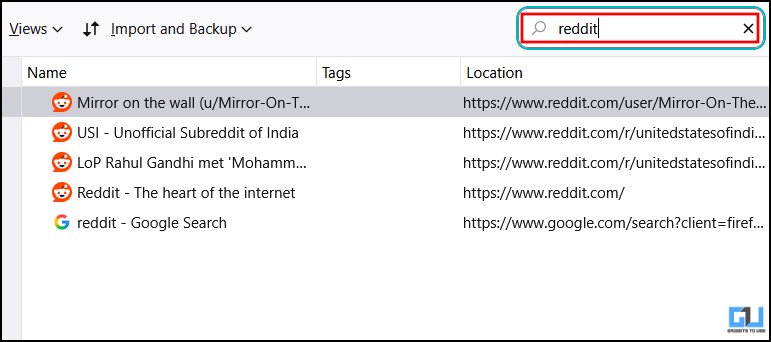
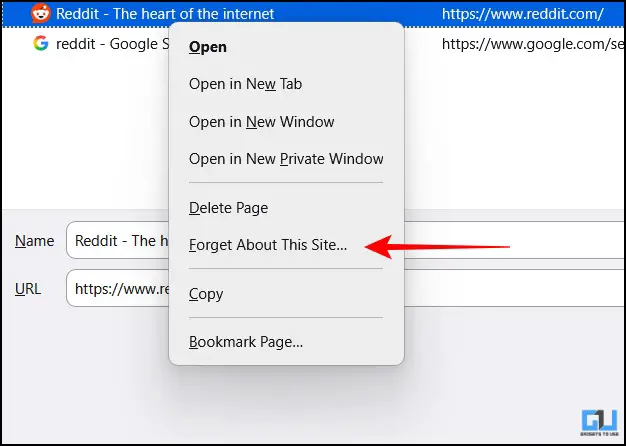
2. Right click on the domain and click on ‘Forget this site’.
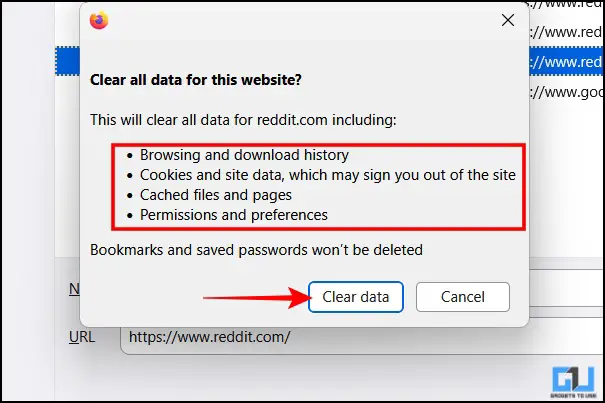
3. A confirmation pop-up will open. Click on ‘Clear data’.
In some browsers that don’t have this feature, you can use private or incognito mode to browse that particular website. Once you close the tab, the history of that site visit will not be saved.
Frequently Asked Questions
Q. Can I stop a website from appearing in search bar suggestions?
Yes, if you delete your history and clear the cookies and cache of that website, it will stop appearing in the search bar suggestions.
Q. Does disabling browser synchronization prevent configuration history from being saved?
No, disabling browser sync will only prevent history from being saved across devices. Website history will still be saved on the device you accessed it from.
Wrapping up
Sometimes you don’t want certain websites saved in your browsing history. Using incognito mode may not be possible, as you may need to log in every time you visit the website where you have a profile. Since all Chromium-based browsers work the same in the background, one method works for them all. However, each non-chromium-based browser works differently, so there is no one-size-fits-all solution.
You may also like to read:
Have questions related to our how-to guides, or anything in the tech world? Check out our new GadgetsUsing an AI Chatbot free, powered by ChatGPT.
You can also follow us for the latest tech news at Google News or for tips and tricks, smartphone and gadget updates, join GadgetsToUse Telegram Groupor subscribe to GadgetsUsing the YouTube Channel for the latest updated videos.
Was this article helpful?
YesNo