

- Usually, when you try to download a large file or folder, you may see a ‘Preparing download’ notification.
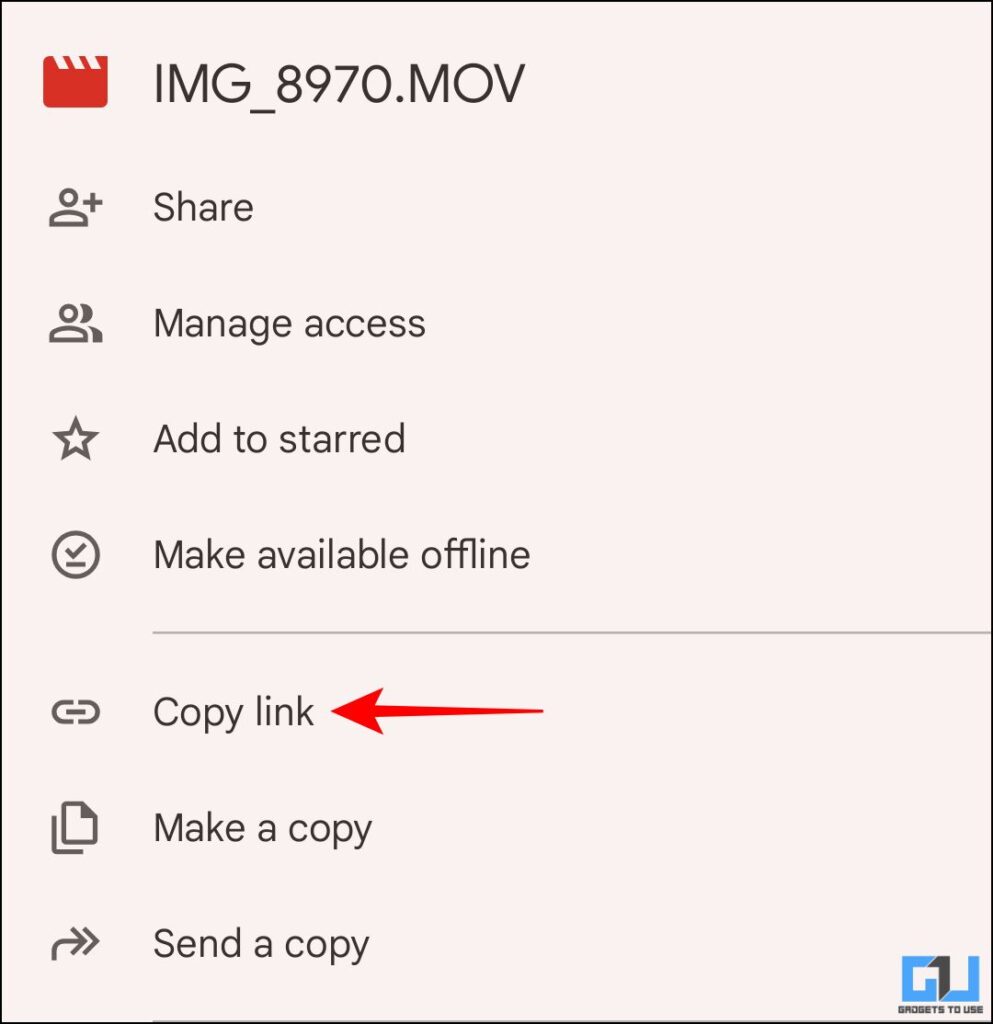
- Now, open the file again and copy the drive link of the file or folder.
- Since this tool is mainly used to share and collaborate on large files, not being able to download them can frustrate users.
Google Drive is one of the most reliable places for cloud storage. Additionally, it is widely used to share and access files across devices and is ideal for collaborative activities. Although sharing large files has been made easy with this tool, you may have problems downloading them to an Android device. It can get stuck for minutes without progress or just fail repeatedly. Let’s understand what the problem can be and explore the workarounds.
Fix Files Stuck in ‘Preparing for Download’ in Google Drive
Usually, when you try to download a large file or folder, you may see a ‘Preparing download’ notification. In addition, it gets stuck like this for minutes without progress or any sign that the file is being downloaded.
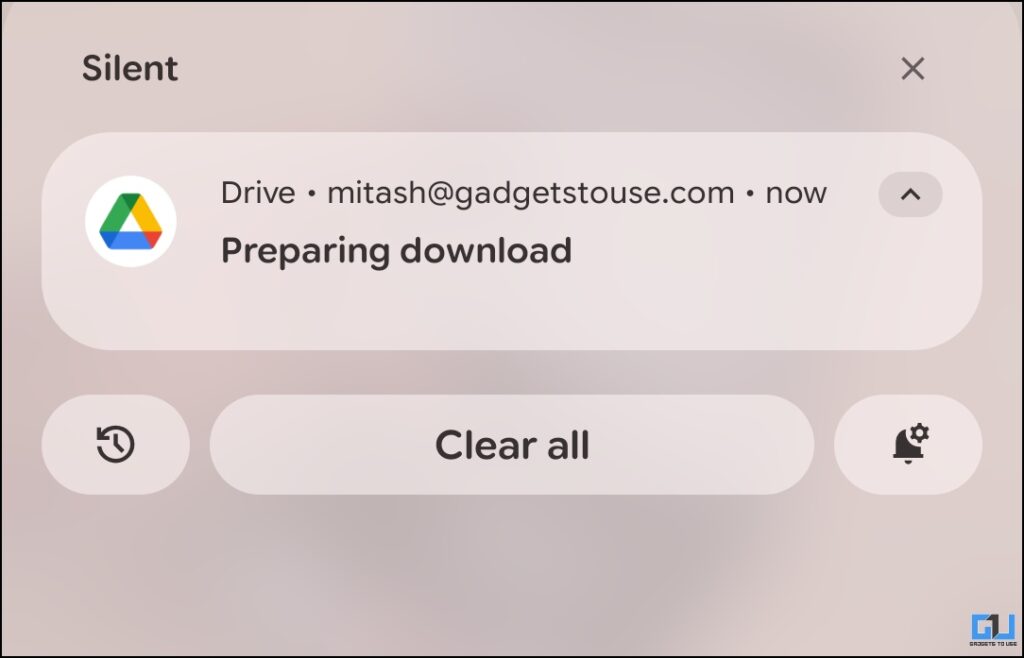
Files may also get stuck and not download due to one or more of the reasons mentioned below:
- Insufficient storage space: The device usually allocates 2-3 times the space required by the file before it is downloaded. So the download may fail if there is not enough storage on your device.
- Unstable internet connection: A weak or unstable connection can cause downloads to fail or get stuck.
How to download if stuck on ‘Preparing to download’?
To fix the ‘Download Preparation’ problem, take the following steps:
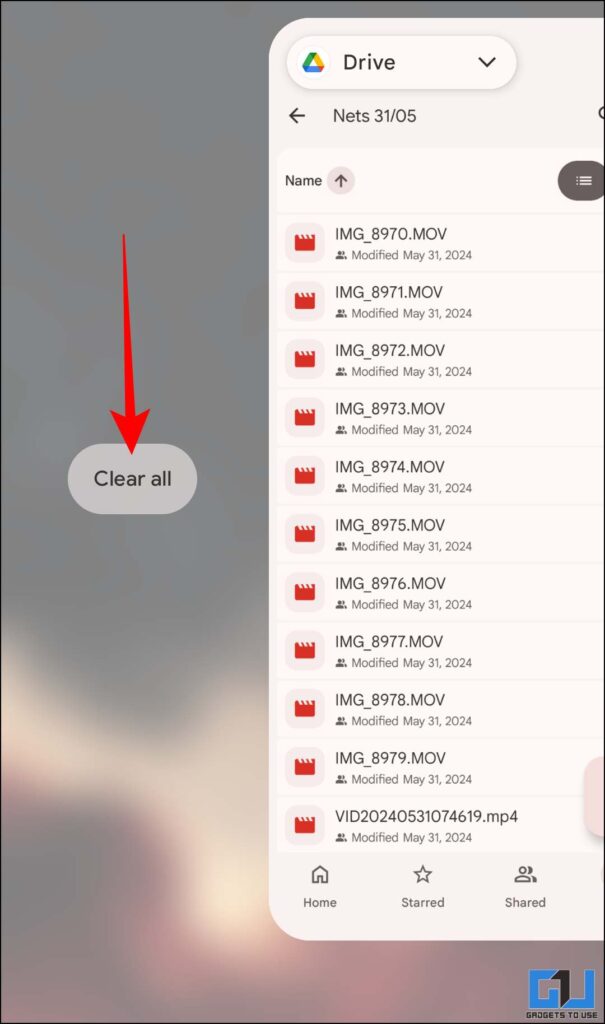
1. First, swipe the notification away from the notification panel. Remove Google Drive App from recent apps.
2. Now, open the file again and copy the drive link of the file or folder.
3. Open Google Chrome, or perhaps another Chromium-based browser. Now, paste the link or URL into the search bar. This will open a browser or desktop site. Tap the download icon.
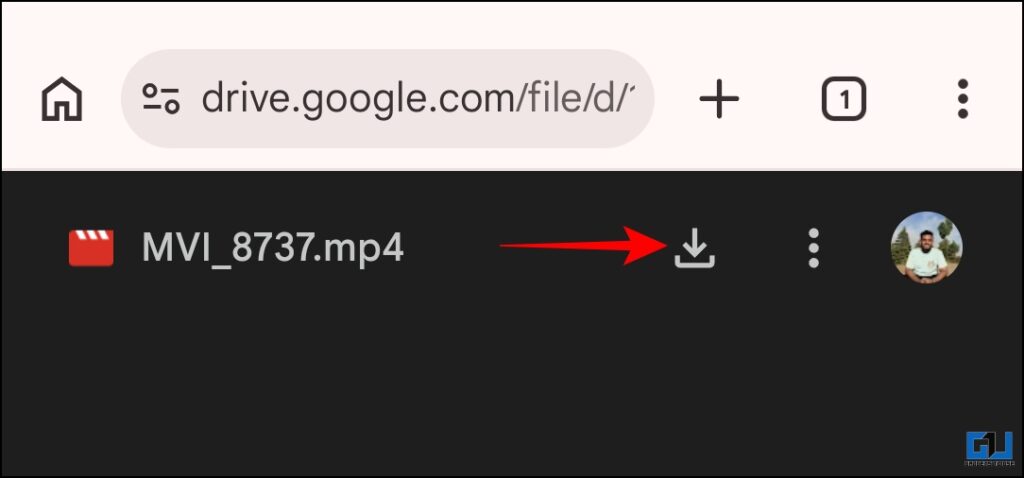
4. Now, tap on ‘Download Anyway’ to start downloading the file.
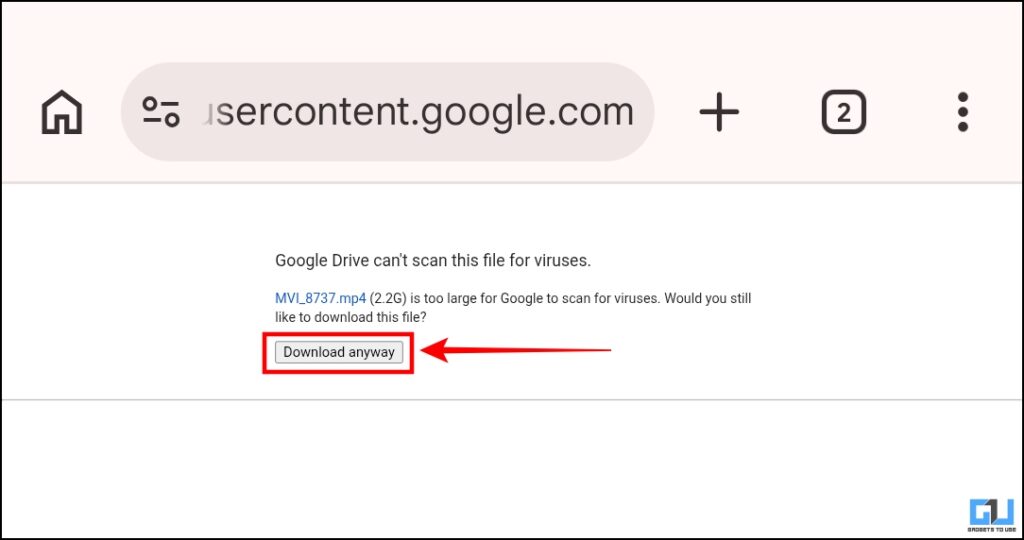
It will be downloaded through the browser. Finally, you will be able to access it on your device, if you have enough storage space.
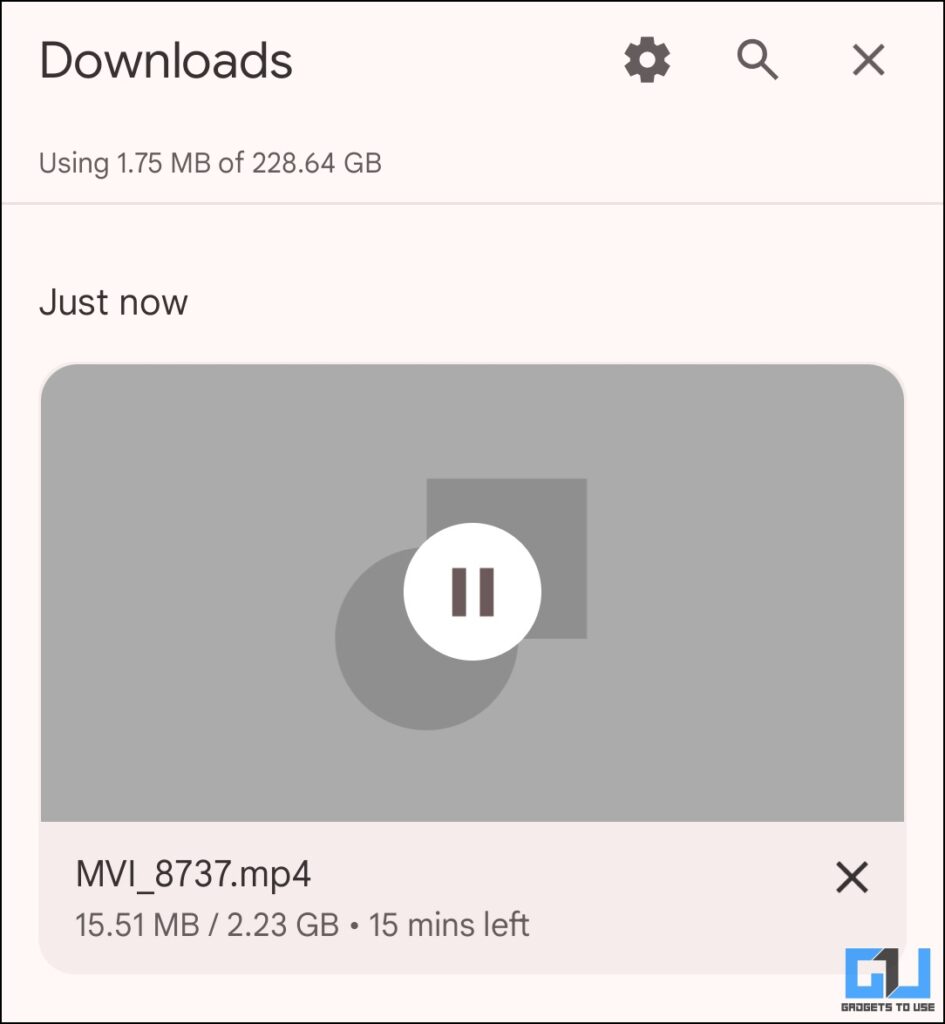
Obviously, when it comes to downloading large files, the browser version handles it better. Also, when downloading a folder, avoid downloading all files at once, especially on Android. It starts zipping all the files in the folder, which can cause it to get stuck. If possible, download each file separately.
For issues like storage and internet, the fix is straightforward:
- Free up enough space to your device before downloading a large file.
- Make sure you have a stable internet connection. Although it is best to download such files over Wi-Fi, you may not always have sufficient internet speed. If so, you can switch to mobile databut make sure you have enough data before it burns out.
Frequently Asked Questions
Q. Why does downloading files with mobile data not work on other devices?
Google Drive may limit downloads with mobile data automatically. Also, your phone setting can be set to ‘Data Saver’. Therefore, large files may be blocked from downloading.
Q. How long should ‘Preparing Download’ take if it doesn’t work?
Usually, it should take 1-2 minutes before it starts downloading. If it doesn’t start, it’s probably stuck, and you should try again.
Wrapping up
While Google Drive is great as a cloud storage platform, the Android app should be better optimized for downloads. Since this tool is mainly used to share and collaborate on large files, not being able to download them can frustrate users. Downloading a file by opening its link in a browser works most of the time. If it still doesn’t work, the file may be corrupted. If so, you should delete the file from the drive and try to load it again.
You may also like to read:
Have questions related to our how-to guides, or anything in the tech world? Check out our new GadgetsUsing an AI Chatbot free, powered by ChatGPT.
You can also follow us for the latest tech news at Google News or for tips and tricks, smartphone and gadget updates, join GadgetsToUse Telegraph Groupor subscribe to GadgetsUsing the YouTube Channel for the latest updated videos.
⬇️ Site Search Gadget ⬇️
You can find anything on our website, including tech how-to, solution or review using the google site search box below.
Was this article helpful?
YesNo